Darkening a photo isn't just turning the brightness down — it's shaping where the eye goes. A vignette pulls attention to the center. A bottom gradient makes room for an overlaid title. A top gradient drops a flat sky into a moody one. Full Dark fades a frame to black for a slideshow. Each look needs a different overlay shape — uniform, radial, or directional — and a controllable intensity. The free online darken tool ships all six in one page, with a custom-color picker and a tap-to-position vignette center. No signup.
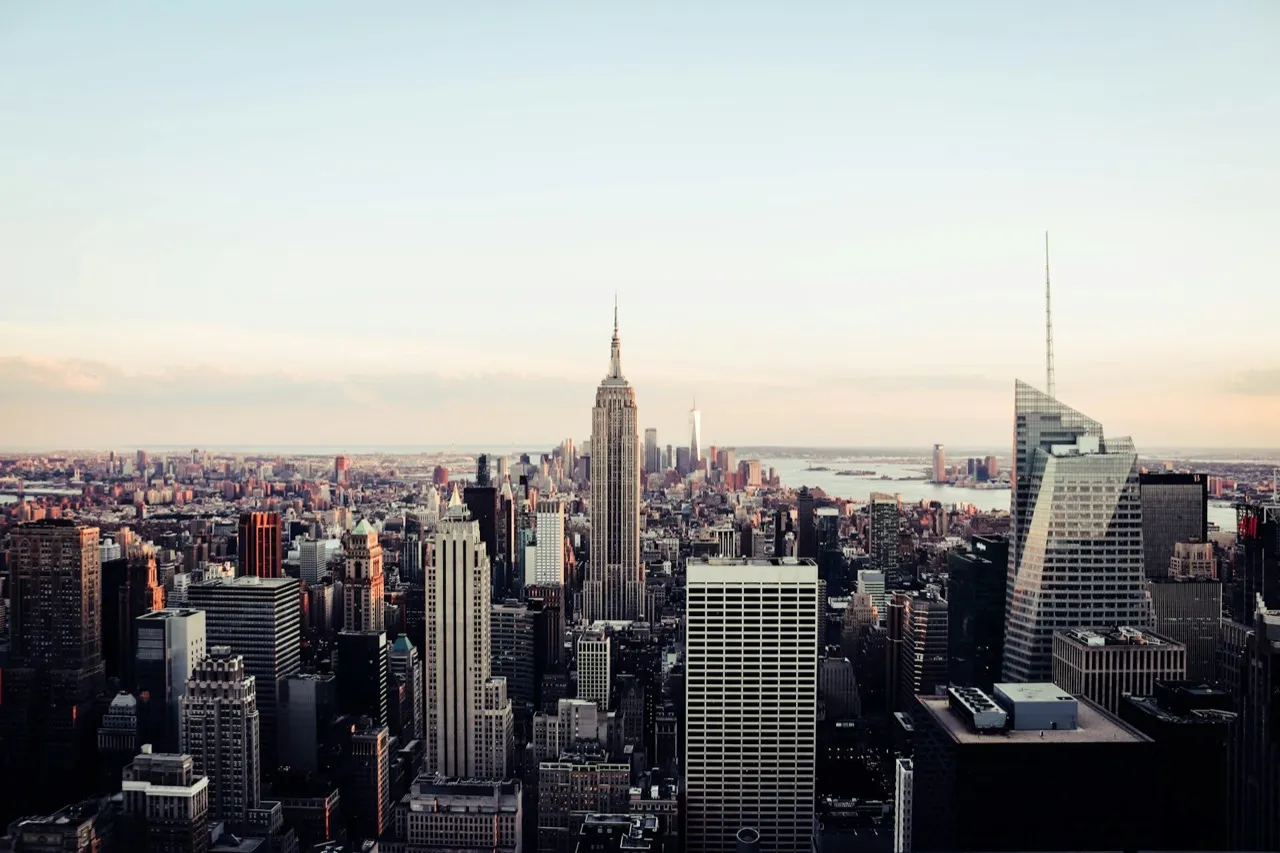
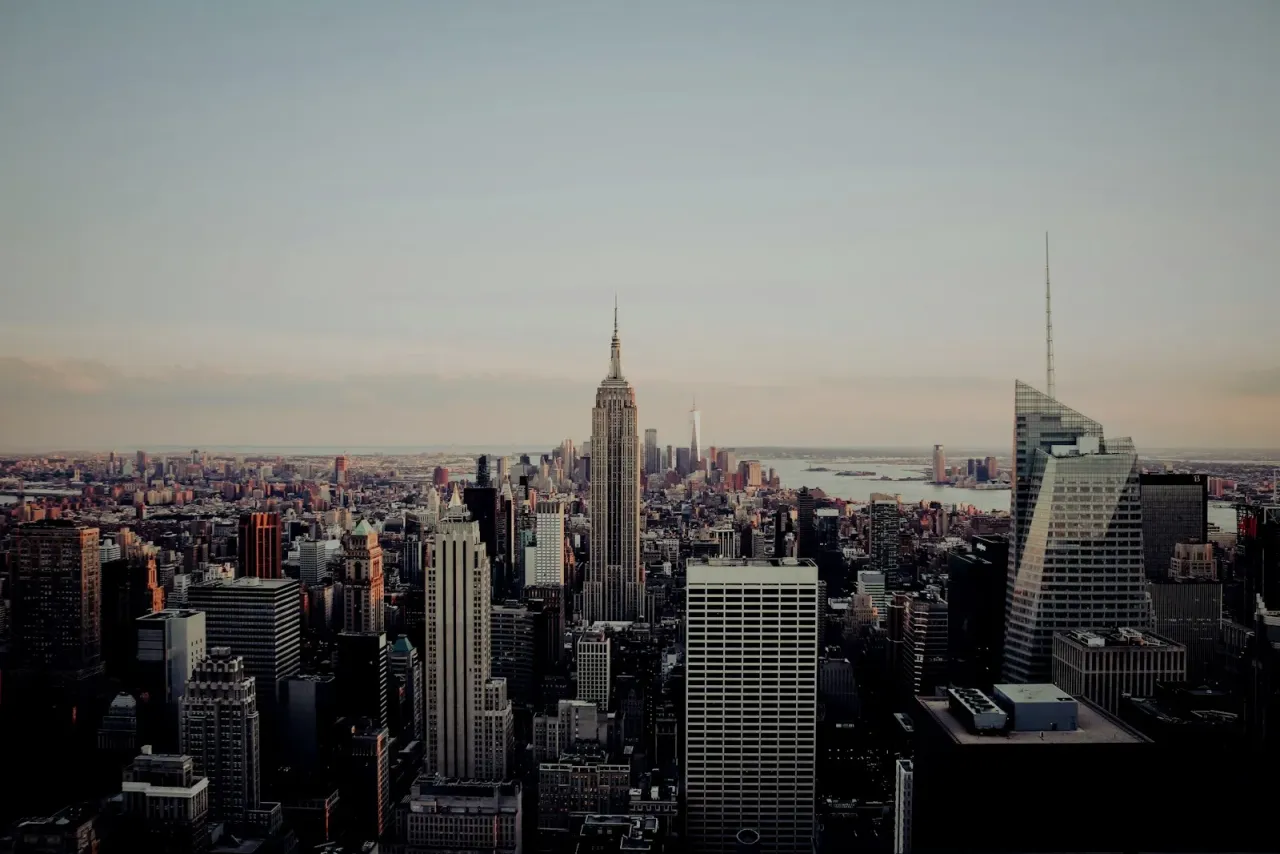
Three steps
- Open the photo darken tool.
- Drop in a photo. Pick a mode. Drag the intensity slider (or tap a 15 / 25 / 50 / 70% preset).
- Hit "Download."
For Vignette mode, you can also tap anywhere on the preview to set the dark center off the geometric middle — useful when your subject isn't centered. The radial overlay re-renders live around the new point.
The 6 darken modes — what each one is for
Different problems need different overlays. Here's what each mode actually does, when to use it, and how the overlay is shaped:
| Mode | What it does | Use it for | Overlay shape |
|---|---|---|---|
| Full Dark | Uniform black wash across the whole frame | Slideshow fade-outs, low-key transitions, pulling exposure down evenly | Solid color over 100% of pixels |
| Bottom gradient | Dark fades from the bottom up | Lower-third for video stills, room for a title or caption, "moody portrait" look | Linear, bottom→top, ~65% reach |
| Top gradient | Dark fades from the top down | Sky punch on landscapes, top bar for status overlay, "storm rolling in" mood | Linear, top→bottom, ~65% reach |
| Left gradient | Dark fades from left to right | Magazine-style left column, room for sidebar text, off-center subject framing | Linear, left→right, ~65% reach |
| Right gradient | Dark fades from right to left | Right-aligned text overlay, framing, subject on the left | Linear, right→left, ~65% reach |
| Vignette | Radial dark from edges toward a chosen center | Cinematic mood, spotlight on subject, album-cover aesthetic | Radial, tap to set center, reaches the farthest corner |
The intensity slider runs from 0 to 95% (the cap stops you from accidentally crushing the photo to pure black). Four presets — 15%, 25%, 50%, 70% — give you the four useful intensity bands in one tap. Color applies to every mode except Full Dark: pick black, white, or any custom hex from the color picker.
What you get, in numbers
- 6 modes in one page — Full Dark, four directional gradients, plus a tap-to-position vignette.
- 0–95% intensity slider, with one-tap presets at 15%, 25%, 50%, 70%.
- Custom overlay color — black, white, or any hex via the color picker. Applies to all modes except Full Dark (which is fixed black for fade-to-black slideshows).
- Tap-to-position vignette center — touch anywhere on the photo to set the bright spot off-axis. The dark radial recomputes live around the new point.
- Gradient reach: ~65% of the image width or height (depending on direction) — far enough to read as a strong mood, short enough to leave a clean unaffected region for a subject.
- Vignette radius — extends from the chosen center to the farthest corner, so corners always darken evenly even if the center is off-axis.
- Hold-to-compare — press and hold the preview to flash the original underneath. On mobile, an explicit "Show original" button does the same (a long-press there would conflict with iOS gestures).
- Reset — one click returns mode, intensity, color, and vignette center to defaults.
- 20 MB per upload, 4 input formats — JPG, PNG, WebP, HEIC (no iPhone conversion step).
- Format-preserving export — PNGs save as PNG with the alpha channel intact; everything else saves as full-quality JPG.
- $0. Free, no signup, no watermark, no credit pack. Same Apple-style editor as the iOS app (1M+ downloads, 4.9 App Store rating), running in your browser.
Zebra darken vs Fotor vs Canva vs Pixlr — what's actually free
How the free tiers compare for darkening a photo, as of May 2026:
| Feature | Zebra (free) | Fotor (free) | Canva (free) | Pixlr (free) |
|---|---|---|---|---|
| Vignette | Yes, tap to set center | Basic, fixed center | Pro only | Yes, fixed center |
| Directional gradients (top/bottom/left/right) | Yes, all 4 | No | Pro only | Limited |
| Full-frame dark wash | Yes | Via "Brightness −100" hack | Via "Brightness −100" hack | Yes |
| Custom overlay color | Yes (color picker, any hex) | Black only | Pro only | Black/white |
| White-color "halo" mode | Yes (vignette + white) | No | No | No |
| Watermark on free | No | No | No | No |
| Signup required | No | Yes | Yes | Optional |
| File size limit | 20 MB | 10 MB | Plan-dependent | Free-tier file cap |
| Input formats | JPG, PNG, WebP, HEIC | JPG, PNG | JPG, PNG | JPG, PNG, WebP |
In plain words: if you want all six darken modes — including four directional gradients, a tap-to-position vignette, and a custom overlay color — without a subscription or signup, Zebra is the only one of the four that gives them on the free tier. Canva locks vignette behind Pro; Fotor and Pixlr only give a single fixed-center vignette and have no directional gradients.
When to use which mode
A short field guide for picking a mode:
- Vignette + black at 25–40% — the most-used darken effect, period. Pulls attention to whatever's in the bright center. In Zebra's iOS app, this is the single most-used preset by a wide margin — the right starting point for portraits, products, food shots, and anything with a clear subject.
- Vignette + white at 25–40% — flips the effect into a soft halo. The subject glows; the edges feel airy. Good for product shots on light backgrounds, "dreamy" portraits, beauty and lifestyle photography.
- Bottom gradient + black at 25–50% — the iconic "moody portrait" look, and the lower-third trick for video stills. Leaves the top of the frame untouched, fades the bottom into black. Headlines, captions, or YouTube text overlays read clearly against the darkened band.
- Top gradient + black at 30–50% — sky punch for landscapes. Flat overcast skies pick up drama; sunsets get a deeper top edge. Also useful as a status-bar mask if you're designing a phone wallpaper or a screenshot mockup.
- Left or right gradient + black at 25–50% — magazine-style framing. Used for editorial layouts where text sits on one side and the photo on the other. The dark gradient fades into the text region so the headline pops without a hard rectangle.
- Full Dark at 70–90% — fade-to-black for slideshow opening or closing frames. Same effect you get at the end of a movie scene. Works for thumbnail "ghost" frames behind text overlays.
- Vignette + custom hex (deep teal, burgundy, navy) — album-cover aesthetic. Picking a non-black overlay color tints the edges instead of just darkening them. Burgundy on a portrait reads as warm and analog; navy on a landscape reads as cinematic.
The technique is older than digital photography. The Wikipedia article on vignetting covers both the optical artifact (lens falloff) and the deliberate post-processing effect — most "good" darkroom prints from the mid-20th century were burned at the edges to focus the eye, the same idea that's now a one-tap setting.
What it's good for, in real jobs
Concrete reasons to darken a photo, with the mode that gets you there fastest:
- Cinematic portrait — Vignette + black at 30%. Subject in the bright spot, edges receding. Closest you can get to a film-still mood without a full color grade. Stack with a Cinematic filter (Teal & Orange) for the full Hollywood frame.
- YouTube thumbnail with bottom title bar — Bottom gradient + black at 50–70%. Crops to 16:9 first using the free crop tool, then darken the bottom third so a high-contrast white title reads against the dark band.
- Telegram channel cover with text on top — Top gradient + black at 40%. Header text in the dark band, photo content visible below. Same trick used by every magazine masthead.
- Product shot on a light background — Vignette + white at 30%. Soft halo, no hard edges. Looks high-end without removing the background.
- Album cover art — Vignette + custom dark color (burgundy, deep teal, navy) at 50–70%. Tints the edges, leaves the center bright, instant analog feel.
- Slideshow opening / closing frame — Full Dark at 80%. Fade-to-black before the next slide. Read on any presentation app.
- Sky drama for landscapes — Top gradient + black at 30–40%. Flat sky becomes a moody one without going to HDR.
- Spotlight a face in a crowd — Vignette, tap the face to set the bright center, intensity 35–50%. Edges go dark, the face stays lit.
Color choice changes everything
Most "darken" tools online assume you want black. Two reasons not to:
- White as the overlay color flips a vignette into a high-key halo — the edges blow out, the center keeps its detail. On a beauty portrait or a clean product shot, the result reads as luxe instead of moody. Three taps: Vignette, color = White, intensity 30%.
- Custom hex lets you tint the edges instead of darkening them in pure neutral. Deep teal (#0a2a3d) reads as cinematic; burgundy (#3a0d18) reads as analog warmth; navy (#0d1a3a) reads as night-mode. Pick a color from the photo itself for a frame that feels designed instead of glued on.
Full Dark is the one mode where color doesn't apply — it's fixed black, on purpose, because that's what fade-to-black means. Every other mode, including all four directional gradients and the vignette, takes any color you pick.
Hold-to-compare and one-tap reset
Two small affordances that move the tool from "playing with sliders" to "actually shipping a photo":
- Press and hold the preview to see the original underneath. Release to flip back. On mobile, a separate "Show original" button gives you the same gesture without conflicting with the OS's long-press handling.
- Reset sets every control back to defaults — Vignette mode, 25% intensity, black color, center at the geometric middle. One click, back to a clean slate.
What if I want to darken only part of a photo, not the whole thing?
The darken tool applies one of six overlay shapes to the whole image — that's the trade-off for how fast and free it is. If you want a more surgical local-darkening effect, two options:
- Use Vignette mode and tap-position the center exactly where you want the bright spot. Everything else darkens around it. For most "darken everything except the subject" jobs this is the right answer.
- Or use the free background remover first to cut the subject, then run Full Dark or Vignette on the original, then place the cut-out subject back on top in any compositor. Two steps, fully free, both in-browser.
For pairing with other looks, the photo filters tool handles color grading, and the blur tool handles softening — most "moody" frames combine darken + filter + light blur in some proportion.