Photo blur is the deliberate softening of a photo — either as the background to make a subject pop ("Portrait mode"), as motion to imply speed, as tilt-shift to make a real scene look miniature, as pixelation to censor a face or license plate, or as zoom/spin to direct the eye to the center. Each look needs a different algorithm. The free online blur tool ships all seven in one page, no signup.
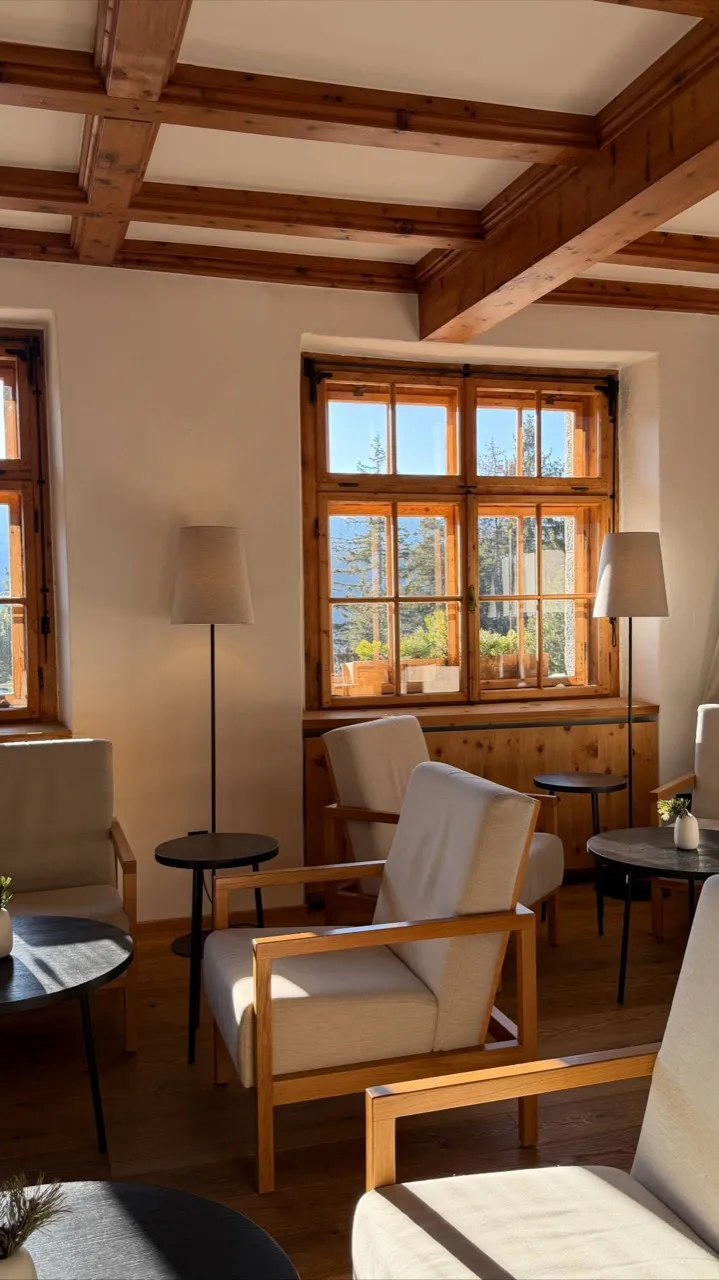
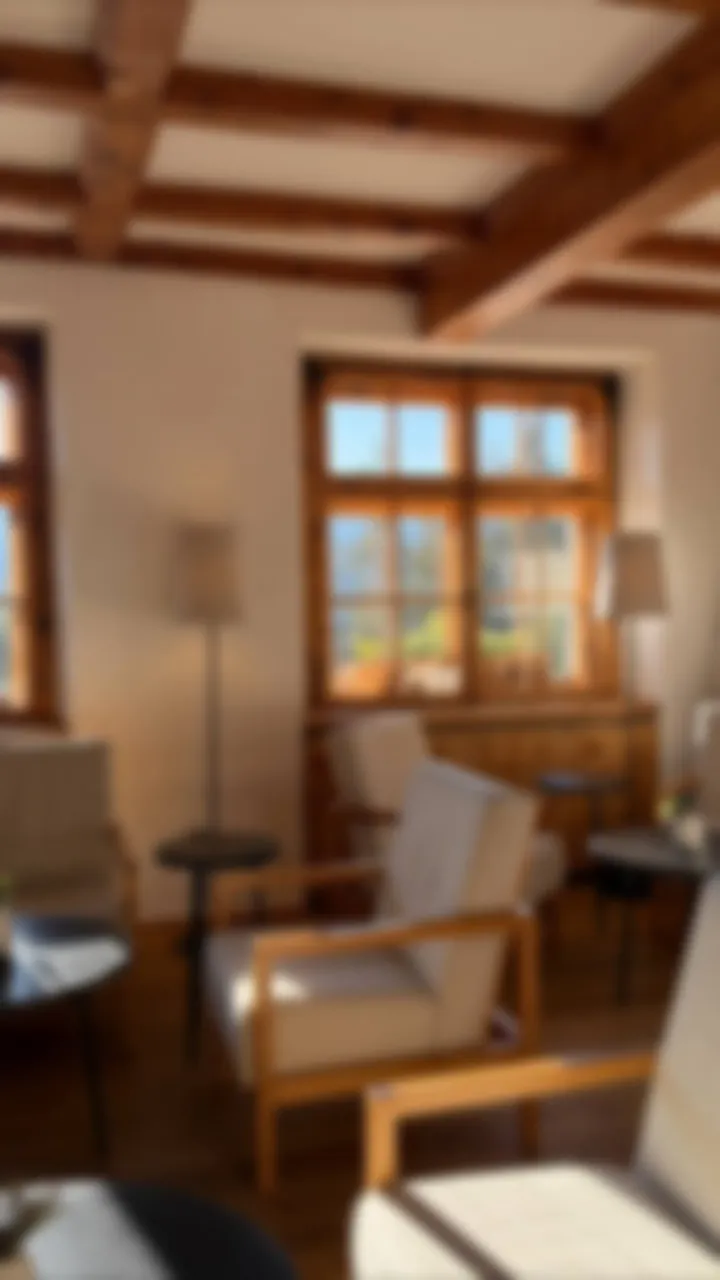
Three steps
- Open the photo blur tool.
- Drop in a photo. Pick a mode. Drag the slider.
- Hit "Download."
For Zoom and Spin modes, you also tap the photo to set the blur center — a one-tap focal point. For Motion, you choose a direction (horizontal, vertical, diagonal). Everything else is one slider.
The 7 blur modes — what each one is for
Different problems need different blurs. Here's what each mode in Zebra actually does, when to use it, and what happens under the hood:
| Mode | What it does | Use it for | Algorithm |
|---|---|---|---|
| Soft (bokeh) | Smooth, slightly creamy blur with rounded highlights | Portrait backgrounds, dreamy mood, social posts | Multi-pass box blur, edge-feathered |
| Gaussian | Mathematically pure, even blur — no character | Generic background blur, technical use, masking | Separable Gaussian convolution |
| Tilt-shift | A horizontal or vertical band stays sharp; the rest fades | Making real scenes look miniature, food shots, cityscapes | Gradient mask + Gaussian |
| Motion | Linear streak in any direction (horizontal / vertical / diagonal) | Implying speed — cars, runners, action shots | Directional convolution |
| Zoom | Streaks radiate outward from a tap-to-place center | Drawing the eye to a focal point, dramatic effect | Radial sampling around center |
| Spin | Rotational blur around a tap-to-place center | Wheels in motion, dance, magic | Angular sampling around center |
| Pixelate | Hard-edged blocks that hide detail | Censoring faces, license plates, sensitive text | Block-average downsampling |
Sliders go up to 50px for blur-style modes (60 for pixelate's block size). Internally the slider is unit-scaled to image dimensions, so the visual strength of "25" on a 4000-pixel photo matches "25" on a 1200-pixel one — same look across resolutions.
What you get, in numbers
- 7 blur modes in one page — soft, Gaussian, tilt-shift, motion, zoom, spin, pixelate.
- Tap-to-place center for Zoom and Spin. No menus, no coordinate inputs — just a tap.
- 3 directions for Motion blur — horizontal, vertical, diagonal.
- 2 focus bands for Tilt-shift — horizontal (most common, for landscapes) and vertical (for portraits).
- 4 quick presets on every mode — Light (5px), Medium (12px), Strong (25px), Max (40px). Skip the slider if you just want a sensible default.
- Up to 3000px long edge on the saved file for the heavy CPU modes (motion, zoom, spin) — visually identical to full-res but ~2× faster on phones. Soft, Gaussian, tilt-shift and pixelate save at native resolution.
- 20 MB per upload, 4 input formats — JPG, PNG, WebP, HEIC (no iPhone conversion step).
- $0. Free, no signup, no watermark, no credit pack. Same Apple-style editor as the iOS app (1M+ downloads, 4.9 App Store rating), running in your browser.
Zebra blur vs Fotor vs Canva — what's actually free
How the free tiers compare for blurring a photo, as of May 2026:
| Feature | Zebra (free) | Fotor (free) | Canva (free) |
|---|---|---|---|
| Number of blur modes | 7 (soft, Gaussian, tilt-shift, motion, zoom, spin, pixelate) | 2–3 (basic blur, pixelate) | 1 (basic blur) |
| Tilt-shift | Yes | Pro only | Pro only |
| Motion blur | Yes, 3 directions | Pro only | No |
| Zoom / spin blur | Yes, tap to set center | No | No |
| Pixelate (censor faces) | Yes | Yes | Limited |
| Hold-to-compare original | Yes, press preview | No | No |
| Watermark on free | No | No | No |
| Signup required | No | Yes | Yes |
| File size limit | 20 MB | 10 MB | Plan-dependent |
| Input formats | JPG, PNG, WebP, HEIC | JPG, PNG | JPG, PNG |
In plain words: if you want all seven blur modes — including tilt-shift and tap-to-center radial blurs — without a subscription or signup, Zebra is the only one of the three that gives them for free. Fotor and Canva put the cinematic modes behind Pro.
When to use which mode
A short field guide:
- Soft (bokeh) — your default for "blur the background of my photo." Looks creamy, like a phone's Portrait mode but applied to the whole frame. In Zebra's iOS app (1M+ downloads), Soft is the most-used preset by a wide margin — it's the right starting point for ~80% of photos.
- Gaussian — you want a clinical, mathematically uniform blur. Useful when blurring will be combined with a mask or other compositing.
- Tilt-shift — turns a real-world city or food shot into a miniature-diorama look. The effect is named after the tilt-shift photography technique used with view cameras. Pick horizontal band for landscapes, vertical for portraits.
- Motion — anything moving. A subway, a runner, a car. Pick the direction the action is going.
- Zoom — radial streaks pulling toward a single point. Tap where you want the focus; the rest of the photo accelerates outward.
- Spin — wheel-of-motion look. Tap the center of rotation. Great for cars, dancers, anything circular.
- Pixelate — censor a face, a license plate, a number on a document. Slider is block size — bigger blocks = more anonymous.
What it's good for, in real jobs
- Background blur for portraits — a sharp subject against a creamy backdrop, no AI cutout needed. Soft mode at 12–25px is the typical setting.
- Censoring faces, plates, names — Pixelate at 30–50px. Save as JPG and upload anywhere safely.
- Tilt-shift for travel and food shots — turns a wide cityscape or overhead food photo into a "miniature world" look. Trending on Instagram and Pinterest.
- Speed shots without a tripod — Motion blur in the direction of travel makes a parked car look like it's moving, or amplifies the speed in an action photo.
- Eye-catching social thumbnails — Zoom blur from the subject outward, or Spin blur on a wheel, both make the viewer's eye lock onto the focal point. Works in YouTube thumbs and ads.
- Privacy on screenshots — pixelate the parts of a screenshot you don't want visible (account numbers, addresses) before sharing.
Hold-to-compare and one-tap reset
Two small affordances that make the difference between "playing with sliders" and "actually shipping a photo":
- Press and hold the preview to see the original underneath. Release to flip back. On mobile, a separate "Show original" button does the same — a hold-style touch would conflict with the OS's gesture handling.
- Reset sets every control back to defaults — Soft mode, 25px, no blur center, no motion direction. One click, back to a clean slate.
What if I want to blur only part of a photo, not the whole thing?
The blur tool applies to the whole image — that's the trade-off for how fast and free it is. If you want only the background blurred while the subject stays untouched, two options:
- Use Tilt-shift mode — it already does this for horizontally or vertically banded compositions (landscapes, portraits with a clear subject in the middle).
- Or use the free background remover first to cut out the subject, then place it on the blurred original. Two steps, fully free, both in-browser.