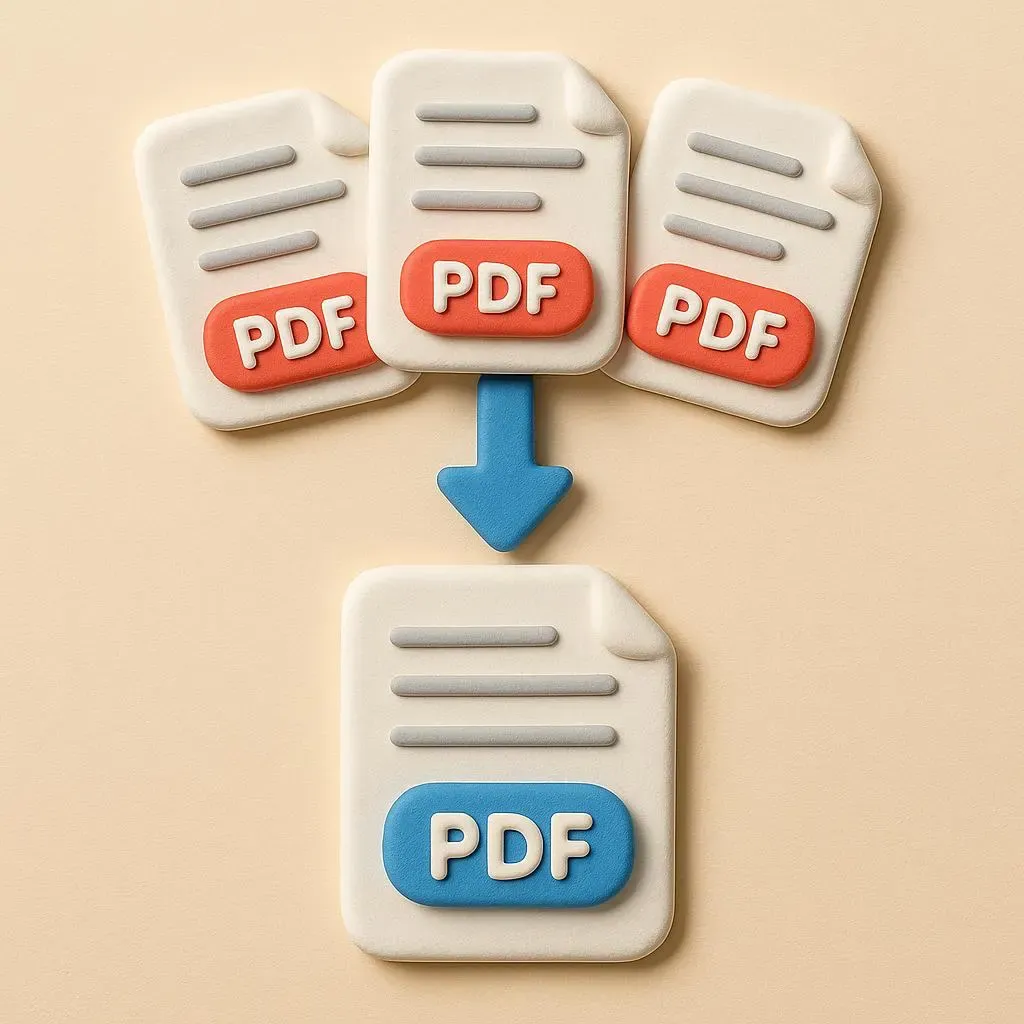
Merging PDFs is one of those jobs that sounds trivial until you need it: combining scanned contract pages into one file, stitching a cover letter to a résumé, packaging invoices and receipts for accounting, or assembling separate chapters into a single book. Merging PDFs means appending every page of several documents into one new PDF, in an order you choose. Zebra does it without uploading anything.
Unlike most free mergers, Zebra runs the whole thing in your browser using pdf-lib. There's no server, no queue, no sign-up funnel. The same code runs on a Mac and an iPhone — you just drop the files in.
Three steps
- Open the PDF merger.
- Drag in two or more PDFs (or click to pick them).
- Drag the files into the order you want, click Merge, then Download the single combined PDF.
That's it. Because pages are copied rather than re-rendered, even a dozen documents combine in a few seconds. If you also need to shrink the result before emailing it, run it through the PDF compressor afterward.
What merging a PDF actually does
A good merger does not re-print or rasterize your pages. It copies the original page objects — text, embedded fonts, vector graphics, images — straight into a new document, byte for byte. Zebra uses pdf-lib's copyPages for exactly this:
- Text stays selectable and searchable. Nothing is flattened into an image, so copy/paste and Ctrl-F still work in the merged file.
- Fonts and vectors stay sharp. A logo or a chart is the same crisp vector it was in the source.
- File size stays sane. The merged size is roughly the sum of the inputs — no bloat from re-encoding.
This is the difference between a merger and a "print to one PDF" workaround, which often re-rasterizes pages and loses the text layer.
Reordering before you merge
Order matters. A merged PDF follows the order of the file list — top to bottom. Before you click Merge, drag the files to rearrange them: put the cover page first, the appendix last, the signature page where the contract expects it. The thumbnail list shows each file's name and size so you can confirm you've got the right document in the right slot.
If you only need a few pages out of a large file, split those pages into their own PDF first (Preview on Mac, or a print-to-PDF of the page range), then merge the smaller pieces.
Why nothing leaves your device
Browser-side merging is rare. Most free tools — iLovePDF, Smallpdf, PDF24, Adobe's online merger — upload your files to their server, combine them there, and stream the result back. That model has real downsides:
- Your documents land on someone else's disk. Even with a "deleted after an hour" promise, there's a window where a misconfigured bucket, an internal employee, or a subpoena can reach them. Contracts, IDs, tax forms, medical records — the exact files you'd most want to merge are also the ones you least want on a third-party server.
- You upload then download. On hotel Wi-Fi or a mobile hotspot, the network round-trip is the slow part — not the merge.
- Server limits push a sign-up funnel. "3 files free, sign up for more, pay for unlimited" is the standard pattern.
Zebra runs everything locally. The files stay in browser memory. There's no upload step and no way for us to retain or even see what you merged. Turn off Wi-Fi after the page loads and merging still works.
File and batch limits
The practical limits, as of June 2026:
| Limit | Free | Premium |
|---|---|---|
| Files per merge | 5 | 30 |
| Max size per file | 150 MB | 150 MB |
| Minimum to merge | 2 | 2 |
| Watermark | None | None |
| Signup required | No | — |
Need to combine more than 5 files on the free tier? Merge them in groups, then merge the results — the output of one merge is just another PDF you can feed back in.
Zebra vs iLovePDF vs Smallpdf vs PDF24
A practical comparison, as of June 2026:
| Feature | Zebra | iLovePDF | Smallpdf | PDF24 |
|---|---|---|---|---|
| Runs in browser | Yes (WASM) | No (server) | No (server) | Mixed |
| Files uploaded | Never | Yes | Yes | Usually |
| Max size per file (free) | 150 MB | ~48 MB | 5 MB | Varies |
| Drag to reorder | Yes | Yes | Yes | Yes |
| Watermark | No | No | No | No |
| Signup required | No | No (small jobs) | No (small jobs) | No |
| Works offline | Yes (after page load) | No | No | Partial |
The honest summary: if any of the PDFs are private, or larger than Smallpdf's 5 MB free cap, Zebra is the cleaner path because the files never leave your device. For small, non-sensitive files any of the four will do.
Troubleshooting
"Merge failed" or a file won't load
Usually one of: a PDF locked with an open password (unlock it first in Preview on Mac or Adobe Reader), a corrupted file pdf-lib can't parse, or a file over the 150 MB cap. Remove the problem file and retry.
The Merge button is disabled
You need at least two files. Add a second PDF and the button activates.
The order came out wrong
The merged PDF follows the list order, top to bottom. Drag the files to rearrange them before clicking Merge, then merge again.
The merged file is large
Merging preserves every page at full quality, so the result is roughly the sum of the inputs. To shrink it, run the merged PDF through the compressor — it can cut 40–80% off image-heavy documents.