Film grain is the random texture every analog photo carried before sensors replaced silver halide — the fine sandy structure of a 35mm Tri-X frame, the slightly chromatic speckle of a pushed Portra 400, the bigger crunchy texture of a fast cinema stock. Digital sensors removed it and digital "filters" usually fake it badly. Zebra's free film grain tool ships three real grain algorithms — flat digital noise, luminance-only film grain, and three-channel chromatic noise — plus optional dust & scratches and a B&W toggle, in one page. No signup, full resolution out, same engine as the iOS app.
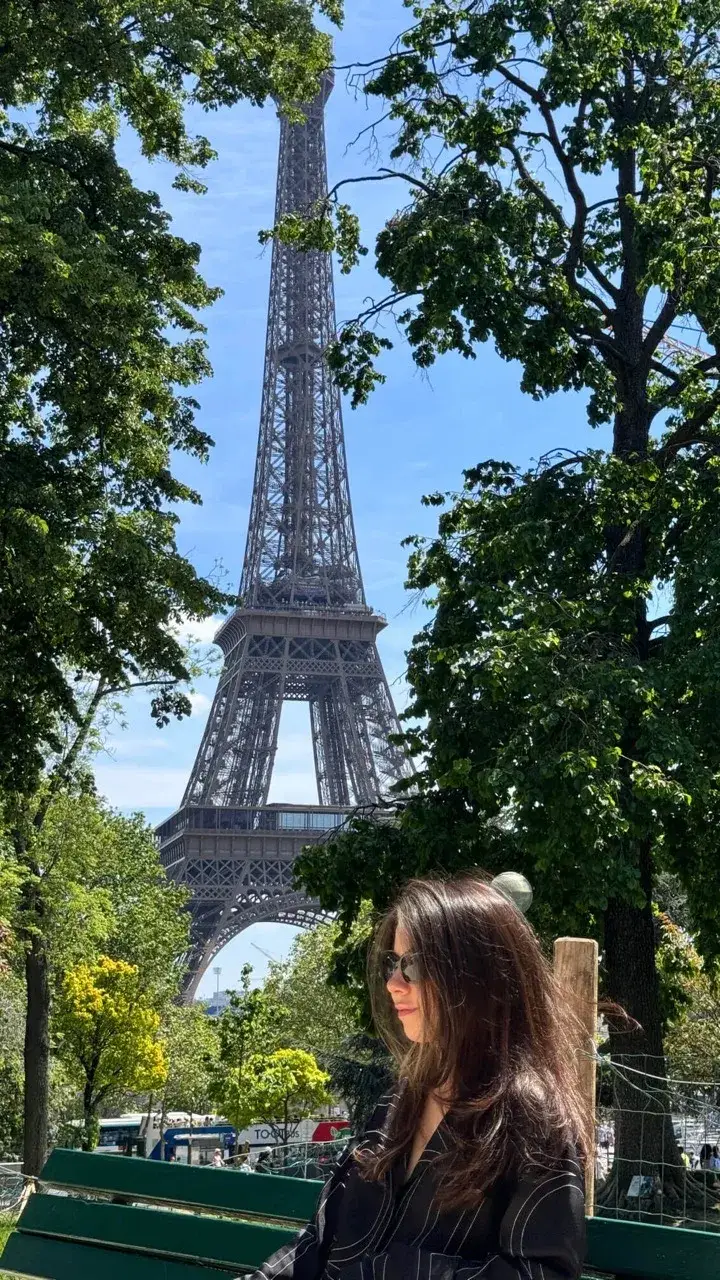
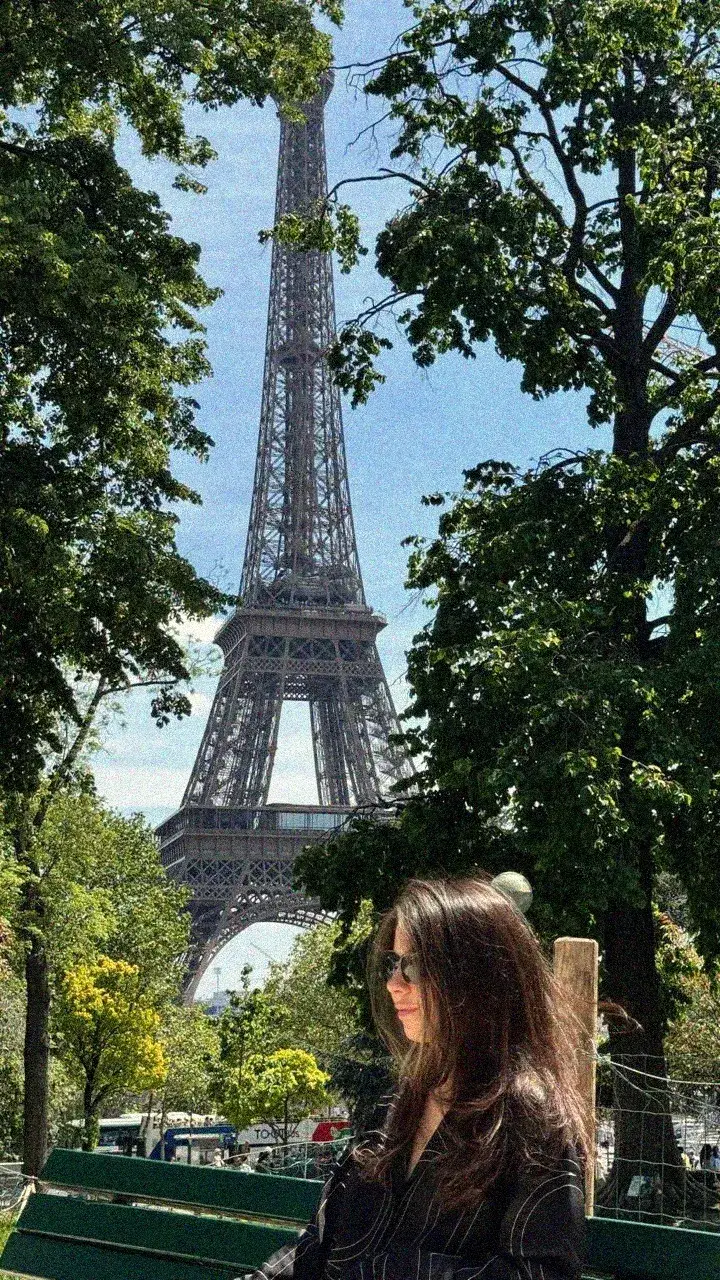
Three steps
- Open the film grain tool.
- Drop in a photo. Pick a mode (Soft / Film / Color) and a size (Fine / Medium / Coarse).
- Drag the intensity slider, optionally toggle B&W, and hit "Download."
Press and hold the preview to flash the original underneath — release to see the grain again. On mobile a separate "Show original" button does the same job; the OS reserves long-press for its own gestures so a hold here would conflict.
The 3 grain modes — what each one is for
Different photos want different grain. Here's what each mode does, the look it copies, and what's happening under the hood:
| Mode | What it does | Use it for | What it copies |
|---|---|---|---|
| Soft | Subtle even digital noise across all three channels | Default for any photo, gentle texture without commitment | Clean ISO 800 digital noise |
| Film | Luminance-only noise — only brightness varies, colour stays clean | "Shot on 35mm" look, faux-analog, moody portraits | Kodak Tri-X 400, Portra 400 |
| Color | Independent R/G/B noise — each channel rolls its own dice, gives a slight chromatic speckle | Pushed film, high-ISO digital, grit | Pushed Tri-X to 1600, ISO 6400 digital |
Sizes go Fine (1px), Medium (2px) or Coarse (3px). Bigger pixels per grain particle = more visible texture, more "vintage." Fine reads as "I just put a slight grain on it"; Coarse reads as "this is a deliberate grain look." Medium is the canonical "Instagram VSCO film" size.
What you get, in numbers
- 3 grain modes in one page — Soft (digital), Film (luminance), Color (chromatic).
- 3 grain sizes — Fine 1px, Medium 2px, Coarse 3px. Different visible texture without changing the algorithm.
- 0–100% intensity slider with 4 quick presets (25%, 50%, 75%, 100%). Skip the slider if you just want a sensible default.
- Dust & scratches toggle (default ON) — adds occasional white scratches and dust particles, like aged celluloid that's been in a shoebox. Toggle off for a clean grain pass.
- B&W toggle (default OFF) — desaturates first, then applies grain. Real monochrome film look, not "colour photo through a grey curve."
- Hold-to-compare — press the preview to see the original, release to see the grain. One gesture, instant A/B.
- Reproducible seed — the random number generator is seeded from your image, so the same photo plus the same settings produce the same grain pattern every time. Re-export with confidence.
- Full-resolution output. PNG in → PNG out (alpha preserved), anything else → JPG at full quality. No downscale.
- 20 MB per upload, 4 input formats — JPG, PNG, WebP, HEIC (no iPhone conversion step).
- $0. Free, no signup, no watermark, no credit pack. Same Apple-style editor as the iOS app (1M+ downloads, 4.9 App Store rating), running in your browser.
Zebra grain vs VSCO vs Snapseed vs Lightroom — what's actually free
How the free tiers compare for adding film grain to a photo, as of May 2026:
| Feature | Zebra (free) | VSCO (free) | Snapseed (free) | Lightroom (free mobile) | Photopea | Fotor (free) |
|---|---|---|---|---|---|---|
| Grain modes | 3 (Soft / Film / Color) | 1 generic | 1 generic | 1 generic | Manual layers | 1 basic |
| Grain size control | 3 sizes (Fine / Medium / Coarse) | Slider only | Style + roughness | Size + roughness | Manual | No |
| Chromatic / colour grain | Yes (Color mode) | No | No | No | Manual | No |
| Dust & scratches | Yes, one toggle | No | No | No | Manual | No |
| B&W + grain combo | Yes, one toggle | Filter then grain (2 steps) | 2 tools | 2 panels | Manual | Limited |
| Reproducible (seeded) grain | Yes | No | No | No | Random | No |
| Hold-to-compare original | Yes | Yes | Yes | Yes | No | No |
| Watermark on free | No | No | No | No | No | No |
| Signup required | No | Yes | No (mobile only) | Yes | No | Yes |
| Browser-based | Yes | App only | App only | App only | Yes | Yes |
| Cost for full grain set | $0 | VSCO+ $29.99/yr | Free, limited | Free / paid Adobe plan | Free | Pro upgrade |
In plain words: VSCO has the best curated film aesthetic but the proper film stocks live behind VSCO+. Snapseed and Lightroom mobile each ship one generic grain — no chromatic, no dust, no B&W combo. Photopea can do anything but you assemble it by hand from layers. If you want all three grain types, dust, B&W and a reproducible seed running in a browser without signup, Zebra is the only one of these that gives the whole set for free.
When to use which mode
A short field guide:
- Soft + Fine + 25–35% — the "I want a hint of texture without anyone noticing" baseline. Good on portraits, product shots, anything where the grain shouldn't be the story.
- Film + Medium + 50% — the canonical "looks like 35mm" preset. Closest match to a Kodak Portra 400 frame. The single most-used preset in the iOS app for the Film category.
- Film + Medium + B&W ON + dust ON + 60–80% — Tri-X emulation. Mid-contrast, mid-grain, slightly aged. Album-cover territory.
- Color + Coarse + 75–100% — concert grit, gig photography, low-light grunge. The chromatic speckle reads as "pushed film" or "ISO 12800 with the lights off."
- Soft + Fine + 30% + B&W ON — quiet noir for a moody portrait. Grain barely visible, mood does the talking.
- Film + Coarse + 70% + B&W ON + dust ON — vintage newspaper / 1970s editorial. Exaggerated, deliberate, not subtle.
- Color + Fine + 50% — the "shot on 35mm digital" look. Reads as authentic noise without going full vintage.
What it's good for, in real jobs
- Faux-film for digital photos — a flat phone capture gains the texture of analog. Film mode at 50% medium grain is the standard preset for Instagram / VSCO-style "shot on film" feeds, without any of the "I bought a 4-pack of presets for $29" friction.
- Tri-X / Portra emulation — Film mode + B&W ON + medium grain + dust ON gives you the closest in-browser approximation of Kodak Tri-X 400, the press and street stock that defined 20th-century black-and-white photography. For Portra colour, leave B&W off, dust off, intensity 40–55%.
- Album-cover aesthetic — Film + B&W + dust + 60–80% intensity. The canonical indie-record-sleeve treatment.
- Concert and gig photos — Color mode + coarse + 75%. Embraces the chromatic noise of high-ISO shots instead of trying to hide it.
- Telegram sticker noir / lo-fi packs — B&W + Film + medium + 70%, dust ON. The grain hides JPEG artefacts when the sticker gets re-encoded by Telegram.
- Cinematic "shot on 35mm" home video stills — Film + medium + 40% on extracted video frames. Just enough texture to read as cinema.
- Vintage scrapbook print look — Film + coarse + dust + 80%, optionally followed by a vintage filter for a fully aged result.
Why three grain modes, not one slider
A single "grain" slider in most editors does roughly what Zebra's Soft mode does: add the same random value to every channel of every pixel. It's fine. It doesn't actually look like film.
Real film grain is luminance-only — the silver halide crystals that scatter light vary in brightness, not colour. That's why Film mode applies one value across R, G and B simultaneously: brightness varies, colour stays clean. It's a small change, and it's the reason Film mode reads as "shot on 35mm" while Soft reads as "noisy".
Pushed film and high-ISO digital sensors, on the other hand, do produce chromatic noise — the channels go off independently, you get green and magenta speckles. That's Color mode. Useful when you want the look of film that's been pushed two stops, or a digital sensor at ISO 12800.
The grain itself is sampled from a Gaussian distribution, then optionally upscaled (the Fine / Medium / Coarse sizes — bigger sample blocks = bigger visible particles), then alpha-blended onto the image with the intensity slider. None of this is novel; what's novel is shipping all three modes in a free in-browser tool with a reproducible seed and a single toggle for dust and B&W.
Hold-to-compare, reset, and the seeded random
Three small affordances that make the difference between "playing with sliders" and "actually shipping a photo":
- Press and hold the preview to see the original underneath. Release to flip back. On mobile, a separate "Show original" button does the same job.
- Reset sets every control back to defaults — Soft mode, 50% intensity, fine size, dust ON, B&W OFF. One click, clean slate.
- Reproducible seed — Zebra's random number generator is seeded from your image, not from the system clock. Same photo + same settings = same grain pattern, every time. So if you export, decide it needs a touch more intensity, and re-export, the underlying grain pattern is identical — only the strength changed. Most editors re-roll the dice and you get a different look.
What if I want B&W with a specific filter, not just "grain plus desaturate"?
The B&W toggle in the grain tool is a quick desaturation — it's the right call when you want pure monochrome with grain in one step. For a graded B&W look — crushed shadows, lifted blacks, tinted highlights — apply a filter first, then grain:
- Open the photo filters tool, pick B&W → Noir or Mono → Inkwell at 100%, download.
- Open the grain tool, upload the result, pick Film + medium + 50–70% with dust ON.
Two passes, fully free, both in-browser, no re-uploading because the saved file goes straight into the next tool.